Pixlr is a free online photo editor that has been around for several years. It's a great alternative to Photoshop for people who can't afford the expensive software or don't need all the bells and whistles.Pixlr has a simple interface that is easy to use and it offers a wide range of features. You can do basic things like cropping, resizing, and adding text to photos. You can also do more advanced things like removing backgrounds, adding filters, and correcting colors.There are two versions of Pixlr: the highly-rated desktop version and the mobile app. The mobile app is available for both iOS and Android devices. It's free to download and use, but there are some in-app purchases that you can make if you want to unlock all the features.Overall, Pixlr is a great photo editor that is well worth checking out if you're looking for an alternative to Photoshop.
Pixlr is a free online photo editor with an extensive range of tools and features. Pixlr is a great app for editing photos on your phone or tablet. Here are some tips on how to get the most out of it: There are a number of pros and cons to the Pixlr app. On the plus side, it is a highly versatile app that can be used for a wide range of purposes, from basic photo editing to more complex graphic design tasks. It is also relatively user-friendly, with a intuitive interface that makes it easy to learn and use. Another plus is that it is available for free, which makes it an attractive option for those on a budget.Features
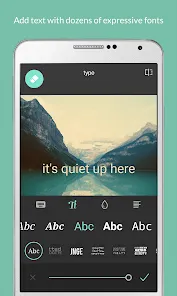
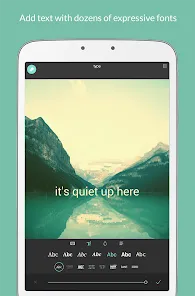
Basic editing tools include cropping, resizing, rotation, exposure, color balance, and levels. For more advanced editing, there are layers, masks, and blending modes. You can also add text, graphics, and overlays.
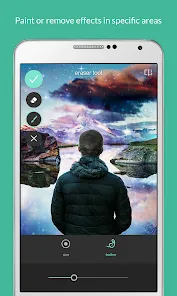
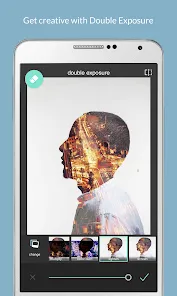
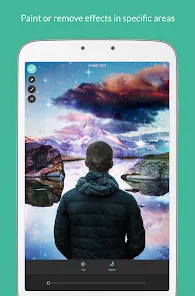
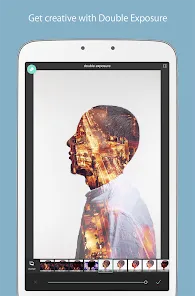
There's a wide selection of filters and effects to choose from, including blurring, sharpening, color correction, and artistic effects.
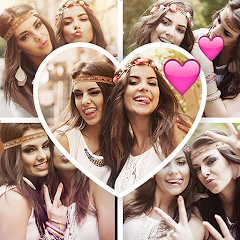
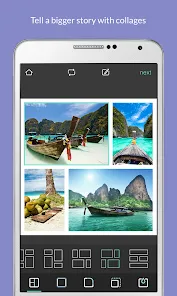
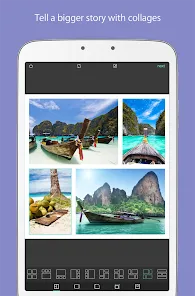
Pixlr also offers a range of tools for creating collages and photo montages. You can upload your own photos or use stock images from Pixlr's library.
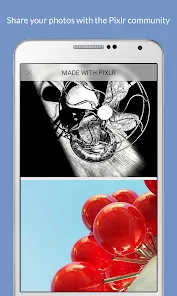
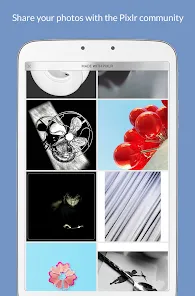
You can save your edited photos in various formats (including JPG, PNG, and PDF) and share them via email or social media.How to use Pixlr
1. Choose the right size and format for your photo. Pixlr offers a variety of options for both landscape and portrait orientation.
2. Crop your photo to focus on the subject matter. This can be done by tapping the "Crop" button in the toolbar.
3. Adjust the brightness, contrast, and other settings to enhance your photo. The "Edit" button in the toolbar provides access to these features.
4. Use filters to change the look of your photo. There are a number of different filters to choose from, each with its own unique effect.
5. Save your edited photo by tapping the "Save" button in the toolbar. You can then share it with others via email, social media, or any other method you prefer.Pros & Cons
On the downside, Pixlr can be a bit resource-intensive, so it may not be the best option for users with older or slower devices. Additionally, some users have reported occasional crashes or glitches. Overall, though, Pixlr is a powerful and useful app that is well worth checking out.
Enhance your images by adding text overlays, with options to customize fonts, sizes, and colors for a personalized touch.
Fine-tune your images by adjusting brightness, contrast, and saturation to achieve the desired visual effect and clarity.
Pixlr offers a variety of filters and effects that can be applied to images, allowing for creative expression and unique styles.
You can either start a fresh project or select an existing image from your gallery to edit, giving you flexibility in your creative process.
You can easily crop, rotate, or resize images to ensure they fit your desired dimensions or composition.






 Google Play
  App Store